Build a Variable-Based Game Score Tracker
Students use variables, arithmetic operators, and update commands to program a score tracker that responds correctly to different game actions.

Illustrations are auto-generated and may be placeholders. They can be refreshed to match the narration.
Explore Variables and Scores
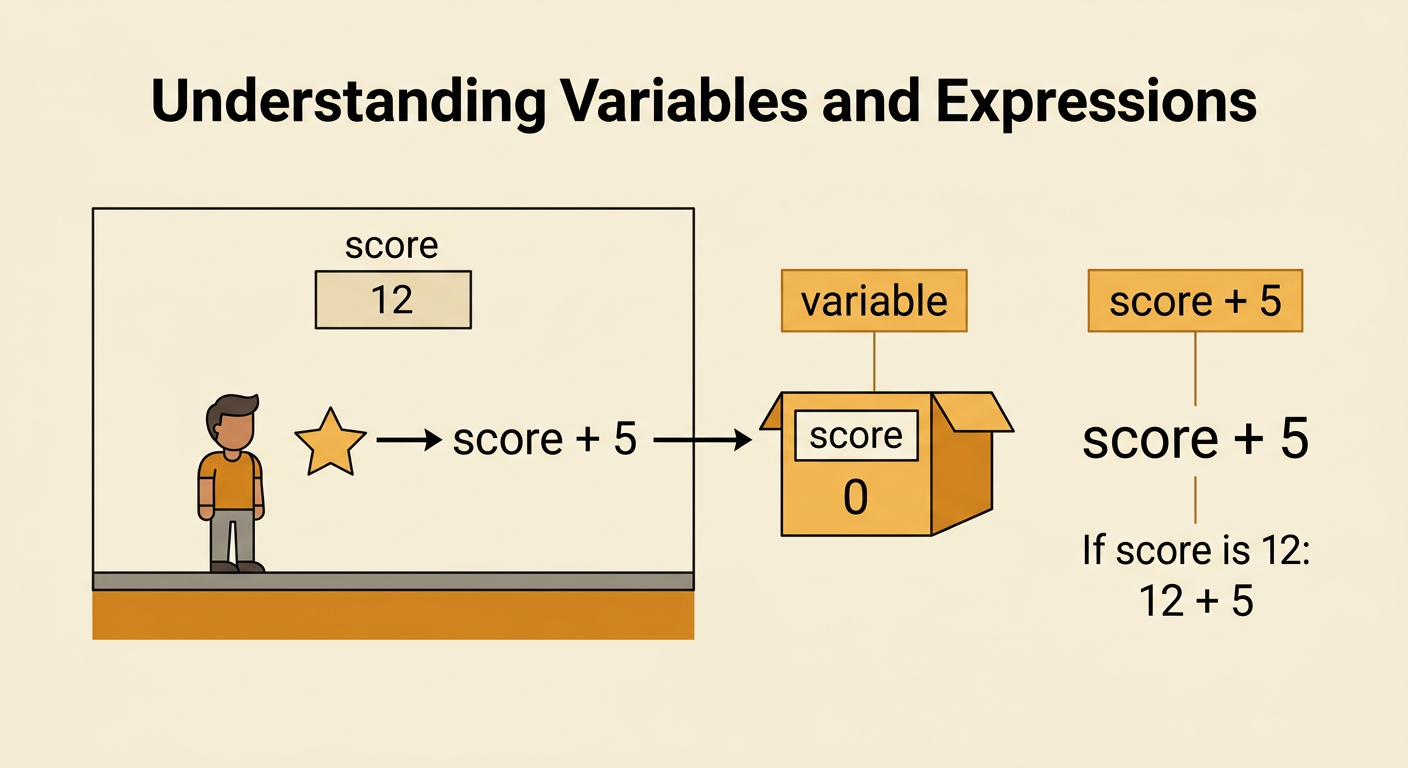
A variable is a named place where a program stores information that can change. In a game, a variable named score can store the player’s current number of points. Imagine that the score begins at 0. When the player collects a star worth 5 points, the program changes the stored score. The expression score + 5 records the calculation the program should make. It means to take the current value of score and add 5. You can interpret this expression without finding a final number because the value of score might be different each time. If score represents 12, then score + 5 represents 12 + 5. Variables help one set of instructions work throughout the game, even as the player earns or loses points.
Create and Name a Score Variable
Before tracking points, create a variable and give it a clear name. The name score immediately tells readers what the variable stores. A name such as s could work, but it is harder to understand. Set score to 0 when the game starts so every player begins with the same number of points. This command can be written as set score to 0. The command assigns 0 to the variable; it is not an equation to solve. Use one consistent name everywhere. Score, playerScore, and points might be treated as different variables by a programming tool. For example, if you create playerScore but later update score, the displayed number may not change. A clear name and a starting value make the tracker easier to program, test, and explain.

Program Score Updates
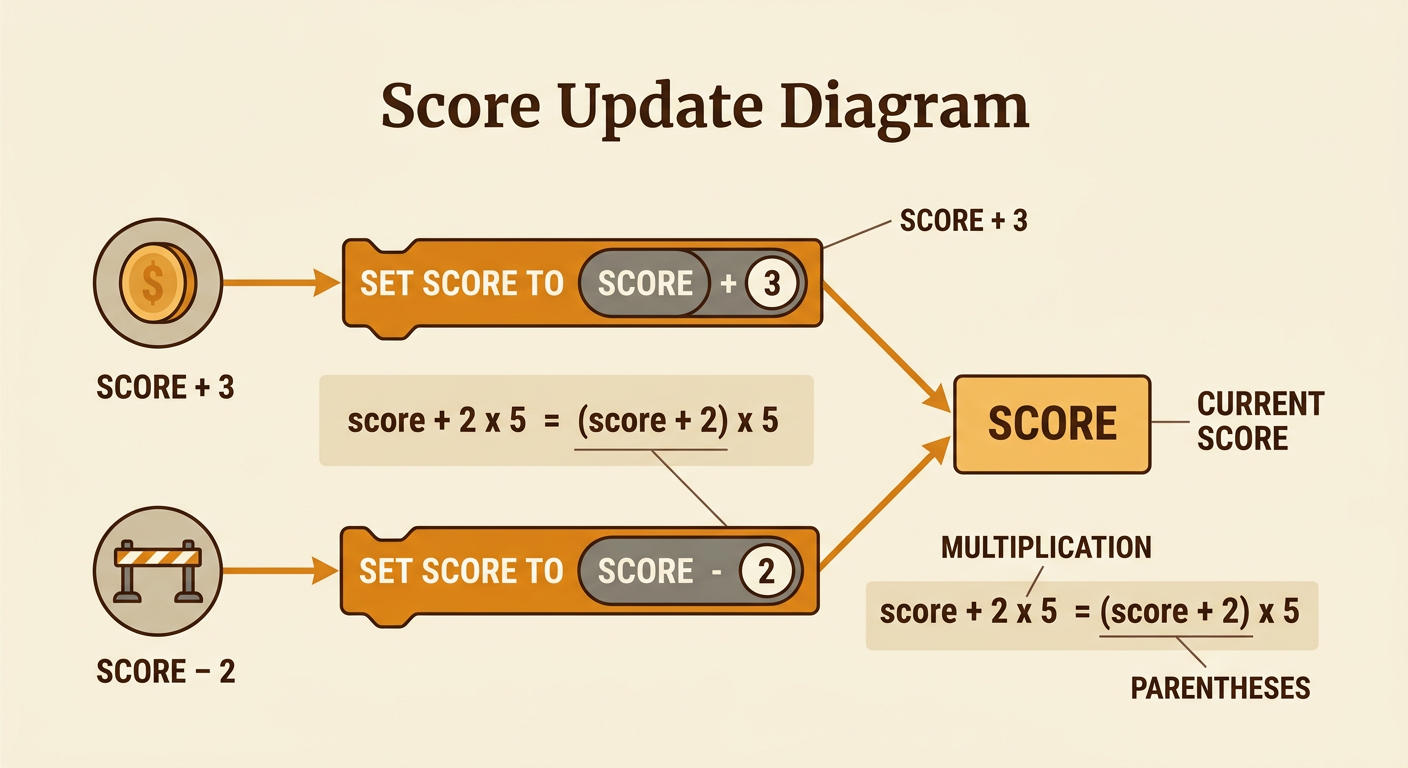
A score update uses the variable’s current value to create a new value. Suppose collecting a coin is worth 3 points. The update command set score to score + 3 means, “Take the current score, add 3, and store the result back in score.” If the player is hit by an obstacle, the command might be set score to score - 2. The expressions score + 3 and score - 2 record two different calculations without requiring one fixed answer. The answer depends on the current score. Order matters when an update includes more than one operation. For example, score + 2 × 5 adds the value of 2 × 5 to the score because multiplication is performed before addition. Parentheses can show a different plan, such as (score + 2) × 5.
Test Different Game Actions
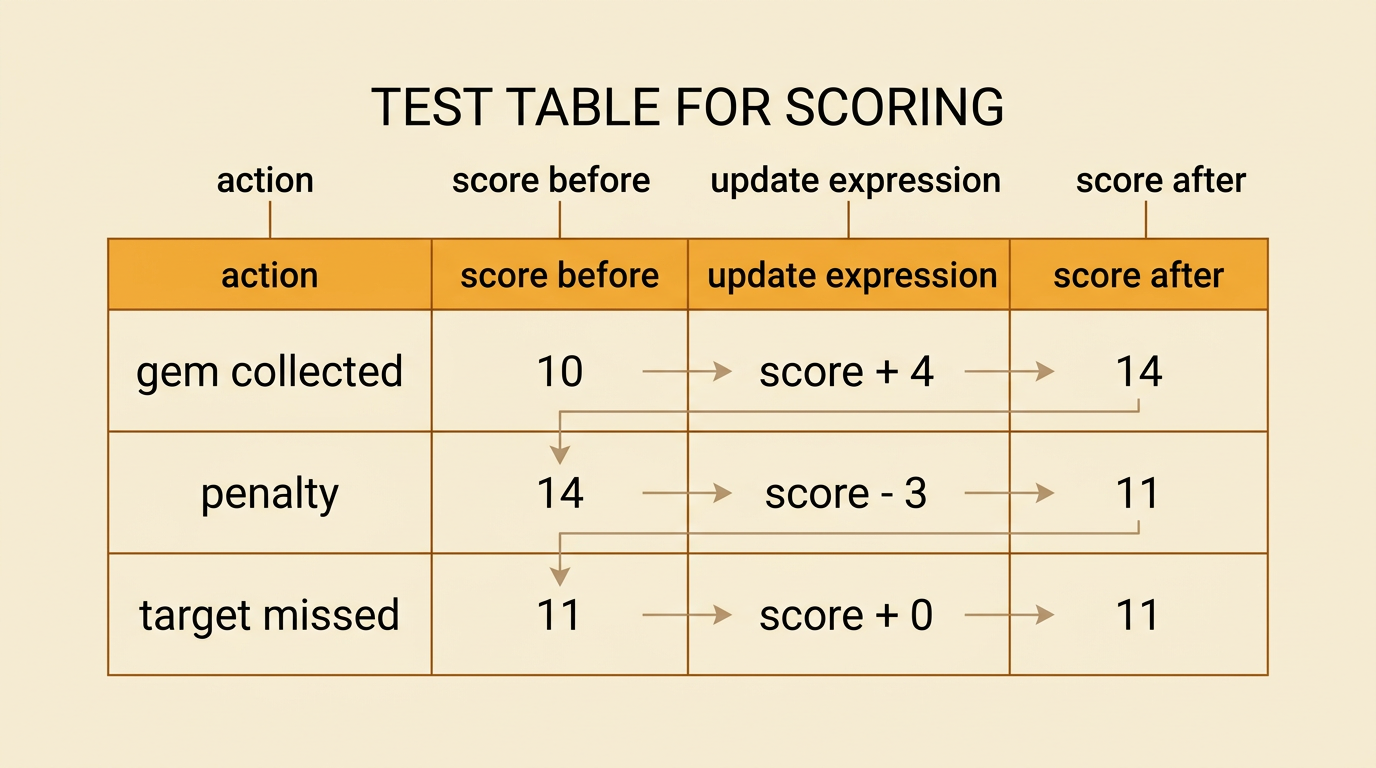
Testing checks whether every game action changes the score as planned. Make a table with an action, a score before the action, an update expression, and a score after the action. For example, begin with a score of 10. If a player collects a gem worth 4 points, the expression is score + 4, so the tracker should display 14. If the next action is a penalty worth 3 points, the expression is score - 3, and the tracker should then display 11. Test actions in different orders because each update uses the score produced by the earlier action. Also test unusual cases, such as missing a target, which might use score + 0. Compare the displayed result with your predicted result after every action. A mismatch shows that the program needs closer inspection.
Debug and Explain the Tracker
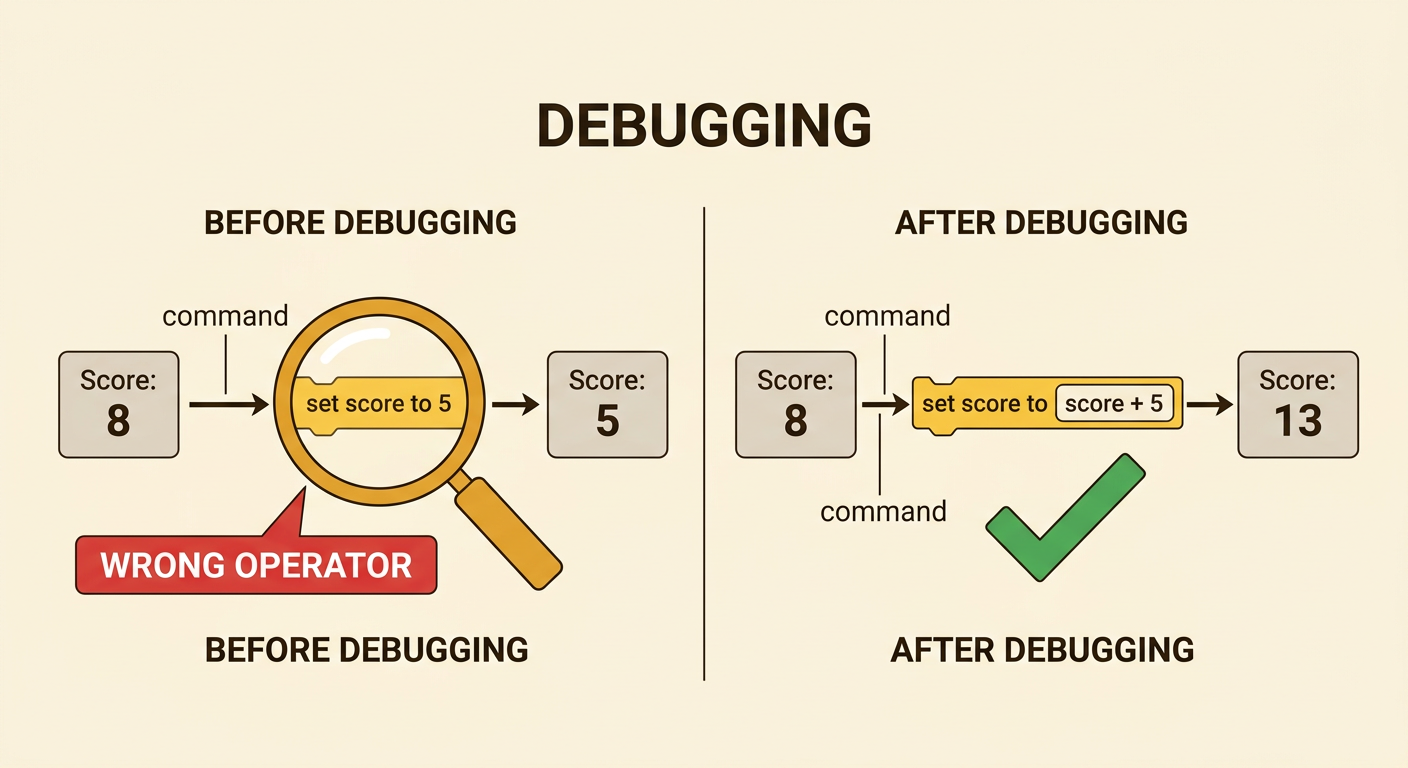
Debugging means finding and fixing problems in a program. If collecting a 5-point star changes the score from 8 to 5, inspect the update command. The command may say set score to 5, which replaces the old value instead of adding to it. Change it to set score to score + 5. Also check for a wrong operator, an incorrect number, a mismatched variable name, or an event connected to the wrong action. After making one change, run the same test again. Explain the corrected tracker by describing the expression rather than only giving its result. For example, score + 5 means that 5 is added to the current value stored in score. This explanation shows why the command works for any starting score, not just for a starting score of 8.