
Computing Systems and Troubleshooting
Students examine how hardware and software work together and apply a step-by-step process to diagnose common computing problems.

Illustrations are auto-generated and may be placeholders. They can be refreshed to match the narration.
Hardware and Software
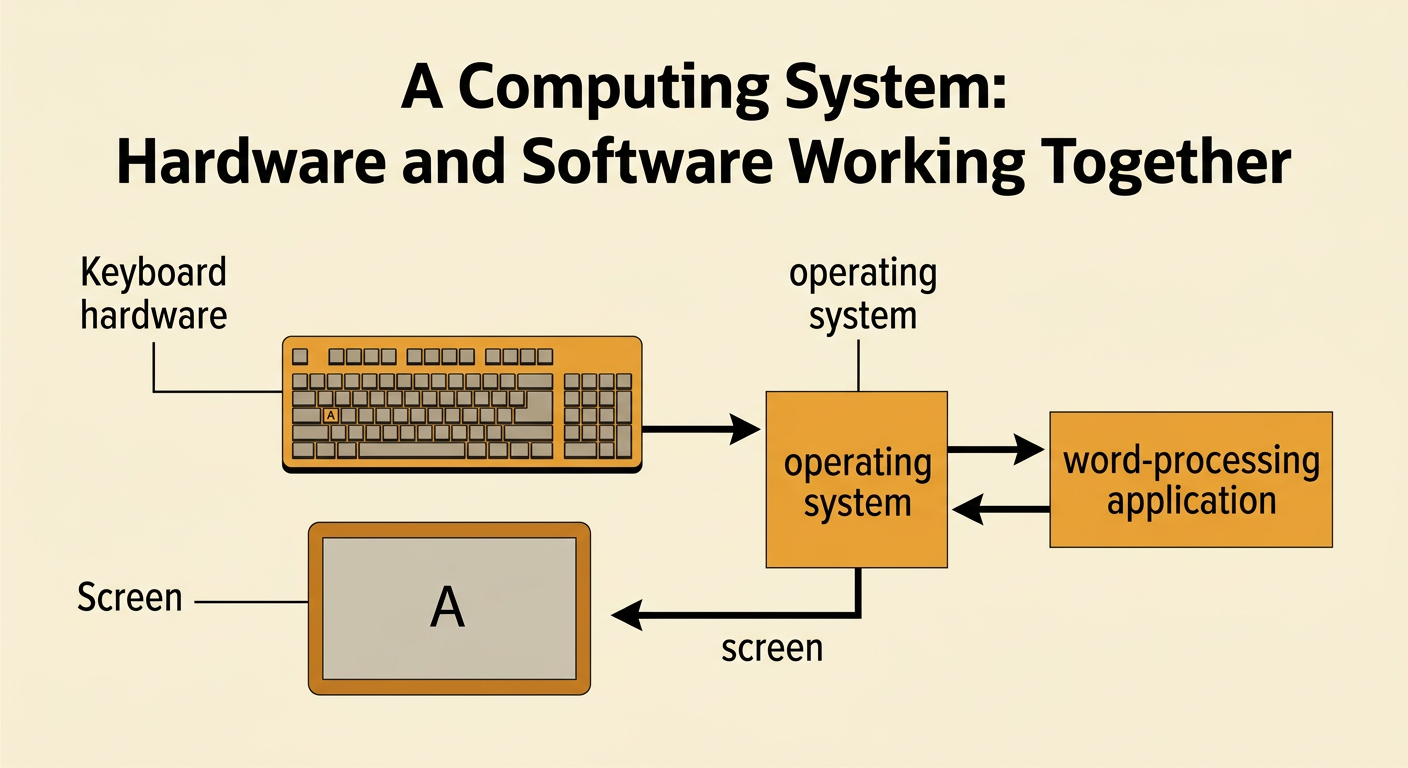
A computing system works through cooperation between hardware and software. Hardware is the physical equipment you can touch, such as a keyboard, screen, processor, memory, and storage drive. Software is the set of instructions that tells the hardware what to do. Applications help users complete tasks, while an operating system manages hardware and allows applications to run. For example, when you type a letter, the keyboard hardware sends a signal to the operating system. A word-processing application interprets the signal, and the screen displays the letter. If no letter appears, the keyboard may be disconnected, or the software may not be responding. Understanding each component's role helps you identify whether a problem is likely related to hardware, software, or the connection between them.
Inputs, Processes, and Outputs
Computing systems handle information through input, processing, and output. Input is data sent into a system through devices such as a keyboard, microphone, camera, touchscreen, or sensor. During processing, hardware follows software instructions to calculate, compare, sort, or change the data. Output is the result produced by the system, such as text on a screen, sound from speakers, or a printed page. For example, when you enter 25 + 17 into a calculator application, the button presses are input. The processor follows the application's instructions to add the numbers. The displayed answer, 42, is the output. Tracing this flow can locate a problem. If button presses appear correctly but the answer is wrong, the issue is more likely in processing than in the input device.

Common System Problems
A system problem may come from hardware, software, power, settings, or a connection. Begin by describing the symptom, which is what you directly observe, rather than immediately guessing the cause. A blank screen could mean the monitor is turned off, a cable is loose, the brightness is too low, or the computer is not sending a video signal. A frozen application might result from a software error or too many programs using memory. No internet connection could involve Wi-Fi settings, the router, or the internet service. One symptom can have several possible causes, so avoid replacing parts before gathering evidence. Check whether the problem affects one application, one device, or several devices. This comparison narrows the search and supports a safer, more accurate solution.
Troubleshooting Steps
Troubleshooting is a step-by-step process for finding and fixing a problem. First, observe the problem and record any error message. Next, gather information: ask what changed, identify affected devices, and check power, cables, controls, and settings. Form a likely cause and try one safe solution at a time. Then test the system under the same conditions to see whether the problem is fixed. If it is not fixed, undo the change when possible and test another likely cause. For example, if headphones have no sound, check the volume, confirm the plug is fully inserted, select the correct audio output, and test the headphones on another device. Changing one thing at a time shows which action affected the result. Ask an adult or technician before opening equipment or making advanced changes.
Explain the Solution
After solving a problem, explain both what you did and why it worked. A useful explanation identifies the symptom, states the cause supported by evidence, describes the action taken, and reports the test result. Include unsuccessful attempts when they provide helpful information. For example: “The laptop could see the classroom Wi-Fi network but could not connect. Other devices connected normally, so the router was working. I removed the saved network, entered the correct password, and reconnected. I opened two websites to confirm the connection.” This explanation links observations to a reasonable conclusion and gives another person steps to repeat. Avoid vague statements such as “I fixed it.” Record important settings or error messages, but never share passwords or private information. Clear documentation helps users solve repeated problems and helps technicians continue work if the issue returns.