
Create a Sequenced Digital Story
Students arrange three digital story scenes in a logical order and add short captions to create and share a clear beginning, middle, and end.

Illustrations are auto-generated and may be placeholders. They can be refreshed to match the narration.
Explore Digital Story Scenes
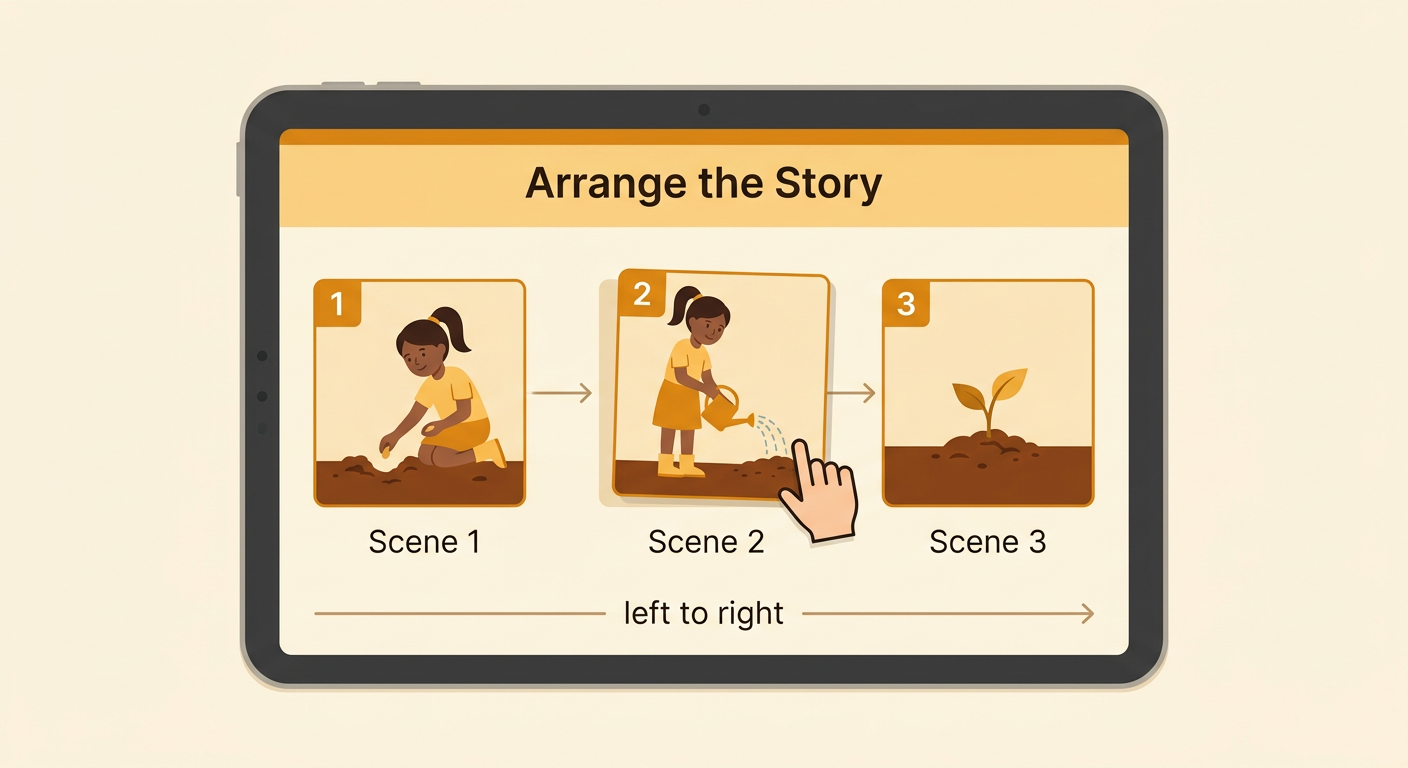
A digital story uses pictures and words to tell what happens. Each picture is called a scene. Before putting scenes in order, look closely at every scene. Notice the characters, setting, actions, and small clues. Ask, “What is happening here?” and “What may have happened before or after this?” Imagine three scenes about Mia planting a seed. One scene shows Mia placing a seed in soil. Another shows her watering the soil. A third shows a green sprout. The seed must be planted and watered before the sprout can grow. These details help you understand the story. With help from a teacher or partner, open the scenes in a digital storytelling tool and talk about what you notice.

Plan the Beginning, Middle, and End
Most short stories have a beginning, a middle, and an end. The beginning introduces the character and starts the action. The middle shows what the character does next. The end shows the result. Plan the story before moving the digital scenes. For Mia’s story, the beginning is Mia planting a seed in a pot. In the middle, she gives the seed water. At the end, a green sprout grows. Say the plan aloud: “First, Mia plants a seed. Next, she waters it. Last, a sprout appears.” You can tell your plan to a partner and listen to feedback. If the order does not make sense, change the plan before building the digital story.

Arrange Scenes in Order
Now use the digital tool to place the scenes in sequence. Select or click a scene, drag it to the correct space, and drop it there. Put the beginning first, the middle second, and the end third. Check the arrows or page numbers to make sure the story moves from left to right. In Mia’s story, Scene 1 shows her planting the seed. Scene 2 shows her watering the soil. Scene 3 shows the sprout. It would not make sense to show the sprout before the seed is planted. If a scene is in the wrong place, move it again. Ask an adult for help using the tool when needed, and take turns if you are working with a partner.
Add Clear Captions
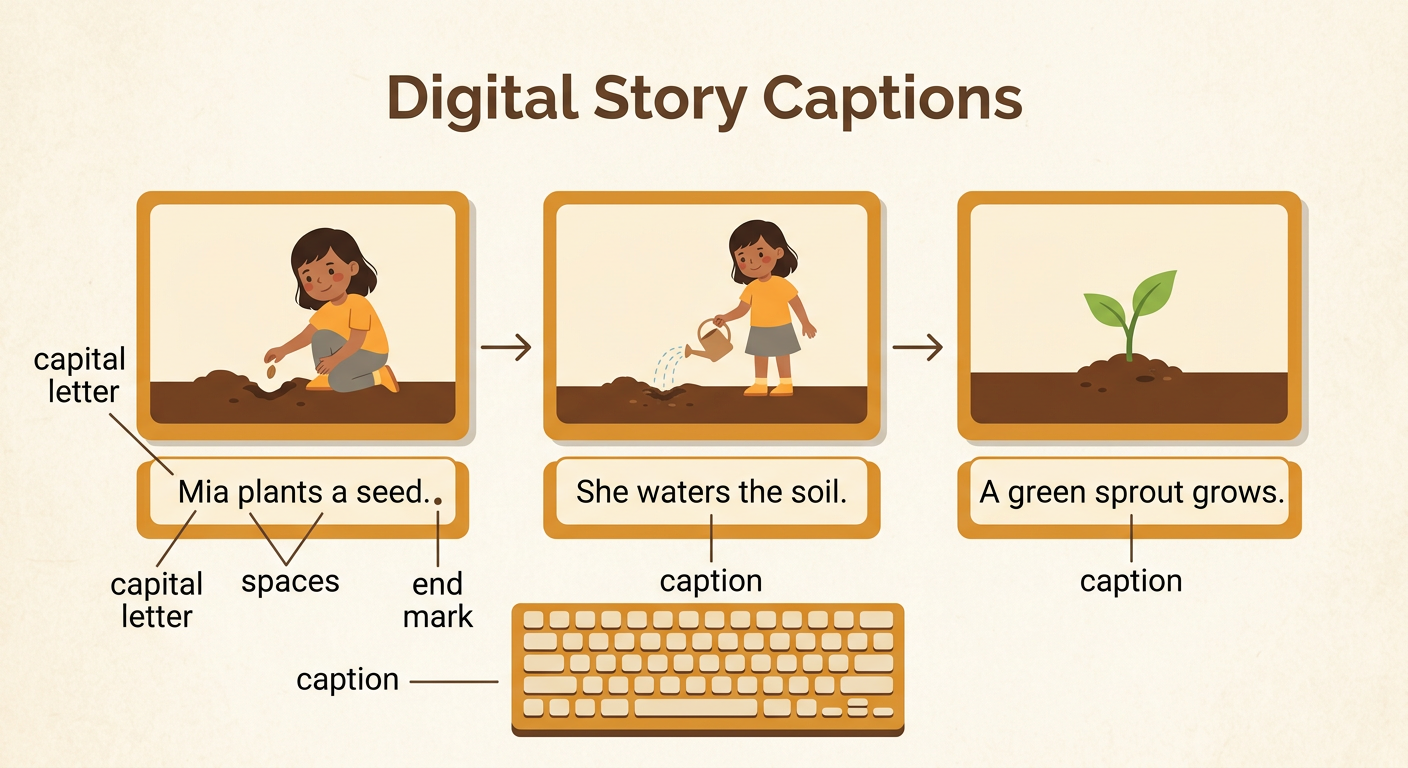
A caption is a short sentence that tells what is happening in a picture. Add one clear caption below each digital scene. Begin each sentence with a capital letter, leave spaces between words, and use an end mark. Choose action words that match the picture. For the first scene, write, “Mia plants a seed.” For the second scene, write, “She waters the soil.” For the third scene, write, “A green sprout grows.” Read each caption and compare it with the scene. Do the words tell what the picture shows? Use the keyboard carefully, and ask a teacher or partner to help you spell a difficult word. Captions should be short enough to read easily and clear enough to help tell the story.
Share and Check the Sequence
Before publishing the digital story, play or view it from start to finish. Read each caption aloud and check that the scenes follow a clear order. Ask three questions: “Does the story have a beginning, middle, and end?” “Does each caption match its picture?” “Can another person understand what happened?” Share Mia’s story with a partner. The partner might say, “I understand that Mia planted and watered a seed, and then it grew.” If something is confusing, work together to fix a scene or caption. Check spelling, capital letters, and end marks with adult guidance. When the story is clear, use the tool’s save, present, or publish button. Celebrate your work and listen respectfully when classmates share their stories.
