
Cybersecurity and Data Protection
Students investigate how passwords, authentication, encryption, updates, and physical safeguards protect devices and information.

Illustrations are auto-generated and may be placeholders. They can be refreshed to match the narration.
Security Threats
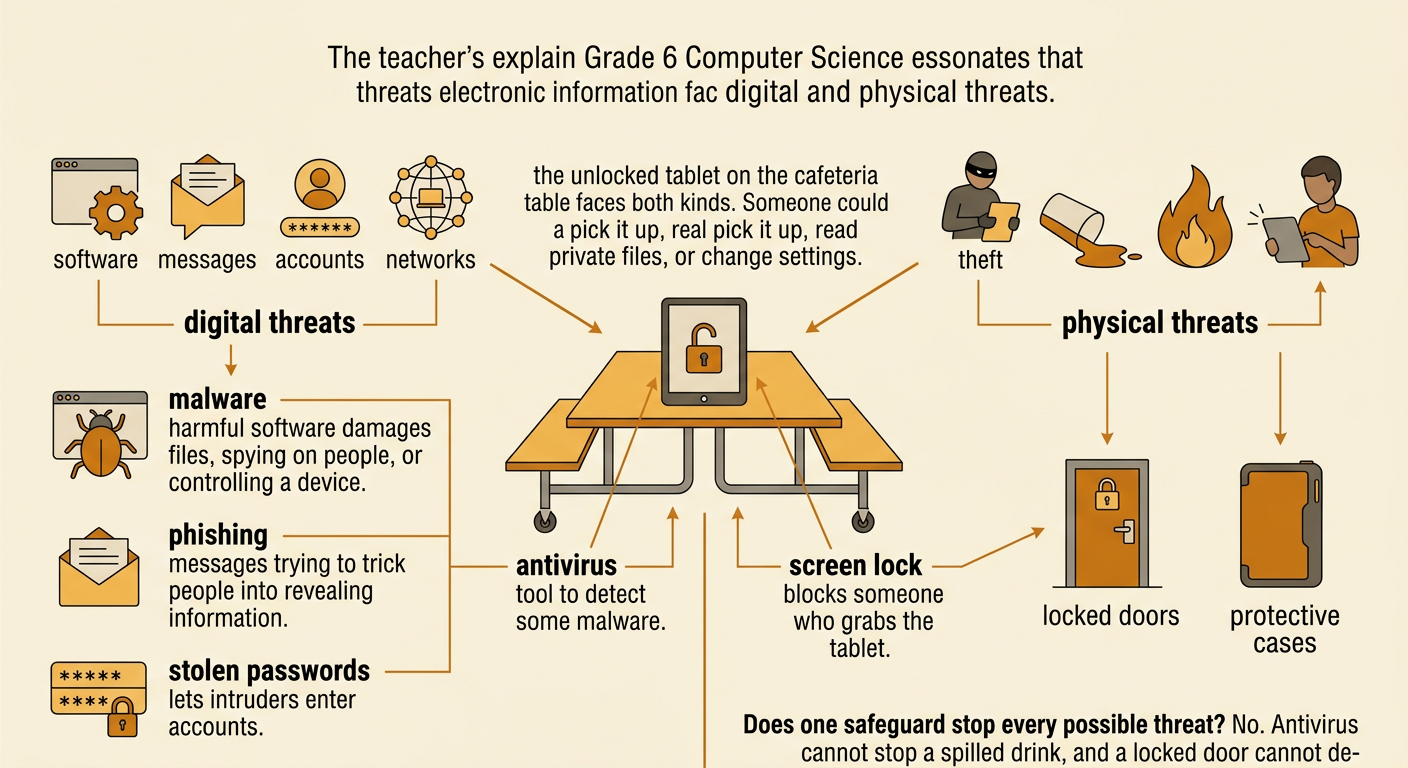
Electronic information faces both digital and physical threats. Digital threats include malware, phishing messages, stolen passwords, and unauthorized network access. Malware is harmful software that may damage files, spy on users, or take control of a device. Physical threats include theft, spills, fire, and someone using an unattended computer. Security measures reduce these risks. Antivirus tools can detect some malware, while locked doors, protective cases, and screen locks limit physical access. For example, suppose a student leaves an unlocked tablet on a cafeteria table. Another person could open private files or change account settings. A strong screen lock protects the information even if the device is picked up. No single safeguard blocks every threat, so devices and data are best protected by several physical and digital measures working together.
Strong Authentication
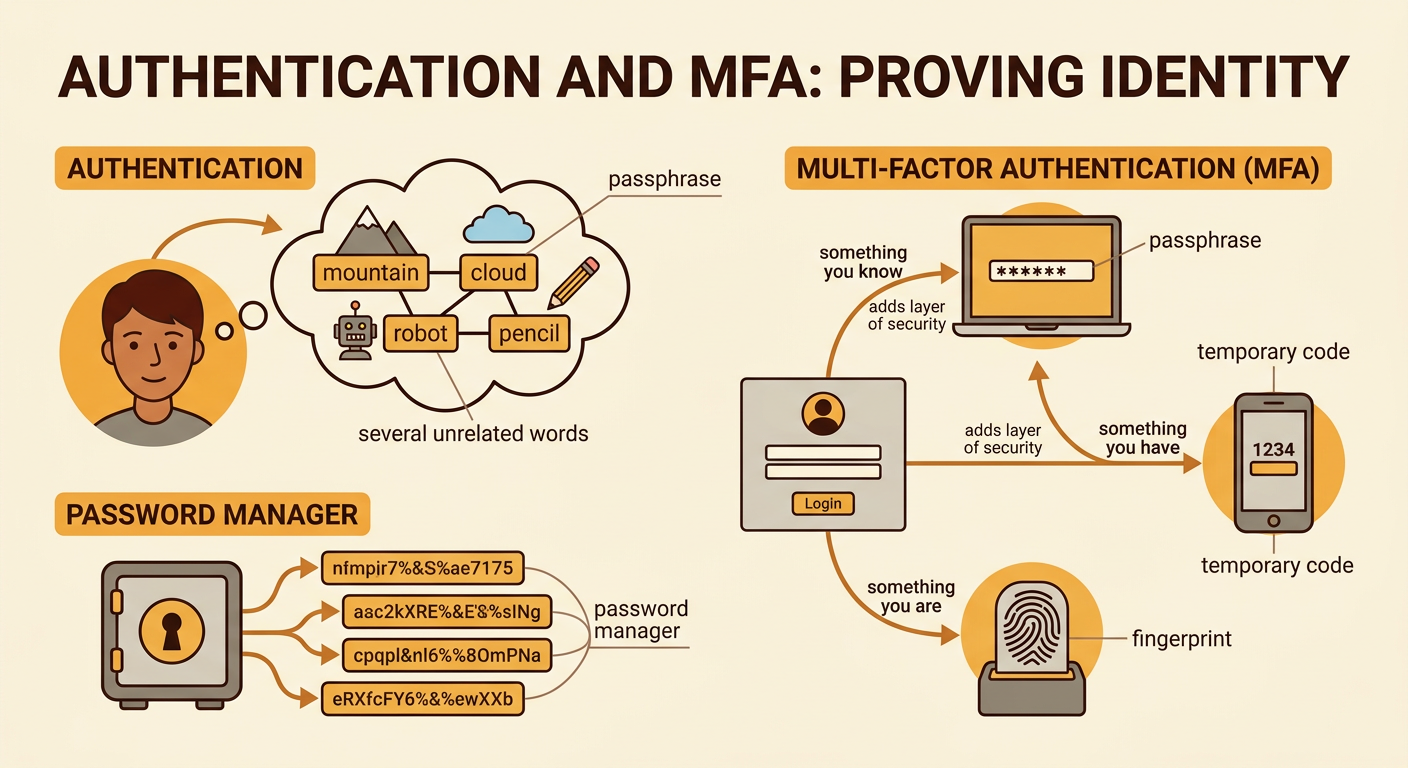
Authentication is the process of proving that a person is allowed to use an account or device. A strong password or passphrase should be long, unique, and difficult to guess. A passphrase made from several unrelated words is usually stronger than a short password based on a name or birthday. Multi-factor authentication adds another kind of proof, such as a temporary code sent to a trusted device, a security key, or a fingerprint. For example, if someone learns Maya’s password, that person still cannot enter her account without the temporary code on Maya’s phone. Password managers can create and store unique passwords securely. Users should never approve an unexpected sign-in request. Authentication is strongest when it combines something you know, something you have, or something you are.
Encryption Basics
Encryption protects information by changing readable data, called plaintext, into scrambled data, called ciphertext. An encryption algorithm uses a key to perform this change. A person or system with the correct key can decrypt the ciphertext and turn it back into plaintext. Without the key, the information should be extremely difficult to understand. Encryption can protect data stored on a device and data traveling across a network. For example, when a student signs in to a secure website, encryption helps prevent someone monitoring the network from reading the username and password. A padlock symbol and “https” in a browser address indicate that the connection is encrypted, although they do not prove that the website itself is trustworthy. Encryption protects privacy, but strong authentication is still needed to control who receives access.

Software and Network Protection
Software and network protections help stop attackers from reaching devices or information. Software updates repair security weaknesses that attackers might use, so updates should be installed promptly from trusted sources. Antivirus software scans for known harmful programs, while a firewall checks network traffic and blocks connections that do not follow its rules. Secure Wi-Fi should use modern encryption and a strong administrator password. Public Wi-Fi may be less secure, so students should avoid sending sensitive information unless they are using a trusted, encrypted connection. For example, a school may use a firewall to block an unknown computer from connecting to its file server. Regular backups provide another layer of protection because clean copies of files can be restored after device damage, accidental deletion, or some malware attacks.

Safe Security Habits
Safe habits help security tools work effectively. Lock the screen before walking away, keep devices in a secure place, and do not let unknown people use them. Check messages carefully before opening links or attachments because phishing messages often create urgency or imitate trusted organizations. Use unique passwords, enable multi-factor authentication, install approved updates, and back up important files. Never share a verification code with someone who requests it unexpectedly. For example, a student receives a message claiming that the school account will close in ten minutes unless the student signs in through a link. Instead of clicking, the student closes the message, visits the school website directly, and reports the message to a teacher or technology staff member. Reporting quickly can protect both the student and other network users.