
Make a Character Respond to a Click
Students create a simple interactive digital scene in which clicking a character triggers movement, speech, or sound.

Illustrations are auto-generated and may be placeholders. They can be refreshed to match the narration.
Explore Click Events
A click event happens when a person clicks or taps something on a screen. The click is an event because it tells the computer that something has happened. A program can wait for this event and then follow a command. For example, imagine a digital cat sitting in a park. When you click the cat, it jumps into the air. The click is the event, and the jump is the response. You can use a mouse to click on a computer or tap with a finger on a touchscreen. Try clicking different buttons or characters in a teacher-approved coding tool. Notice which objects respond and which do not. Talk with a partner about what you expected to happen and what actually happened.

Choose a Character and Setting
Your interactive scene needs a character and a setting. A character is a person, animal, or object that can act. The setting is the place where the action happens. Choose items from the digital tool’s library, or create your own with guidance from an adult. For example, choose a frog as the character and a pond as the setting. Place the frog on a lily pad where it is easy to see and click. Think about a short story for your scene. Maybe the frog is waiting for a friend. With a partner, describe what the frog might do or say when someone clicks it. Make sure the background does not hide the character. Give your scene a clear title, such as “Frog at the Pond.”

Connect an Event to an Action
Now connect the click event to an action. An action is something the character does, such as moving, turning, or changing size. In a block-based coding tool, select the frog and add a block that means “when this character is clicked.” Then connect a movement block below it. For example, use “move 20 steps.” The blocks must touch and appear in the correct order. The event block goes first because the computer waits for the click. The action block goes next because it tells the frog what to do. Click the frog to run the code. If the frog moves too far, change 20 steps to 10 steps. Work with a partner to read the blocks aloud from top to bottom and check the sequence.

Add a Speech or Sound Response
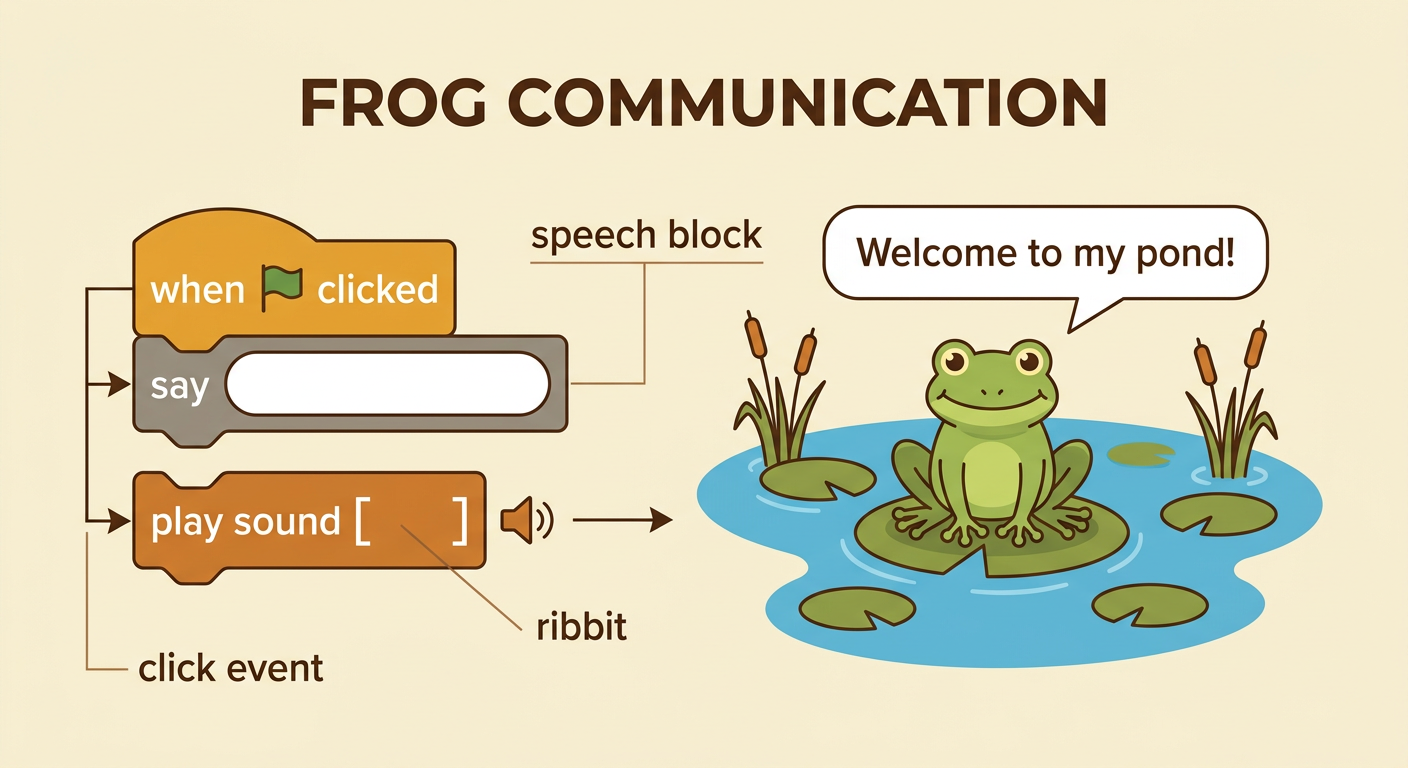
A character can also respond with words or sound. Add a speech block below the click event, and write a short sentence for the character. Use a capital letter at the beginning and punctuation at the end. For example, the frog could say, “Welcome to my pond!” when clicked. Read the sentence aloud to check that it makes sense. You may also add a teacher-approved sound, such as a quiet “ribbit.” Arrange the blocks so the computer knows what to do first. The frog might speak and then play the sound, or it might move before speaking. Ask a partner whether the response matches the character and setting. Revise the words together if they are unclear. Your digital writing helps the character communicate with the audience.
Test and Improve the Scene
Testing helps you find out whether your scene works as planned. Start the project, click the character, and carefully watch and listen. Check whether the frog moves, speaks, or makes a sound. If nothing happens, make sure the code is attached to the frog and the blocks are connected. If the frog moves off the screen, reduce the number of steps or change its direction. Ask a partner to test the scene without telling them what should happen. Listen to their feedback. They might say that the words disappear too quickly or the sound is too loud. Make one change at a time, and test again after each change. When the scene works well, save it with adult guidance and share it with classmates using the approved digital tool.
