
Make It Happen: Coding with Events
Students create and test simple programs in which an event, such as a button press or tap, causes a character to perform an action.
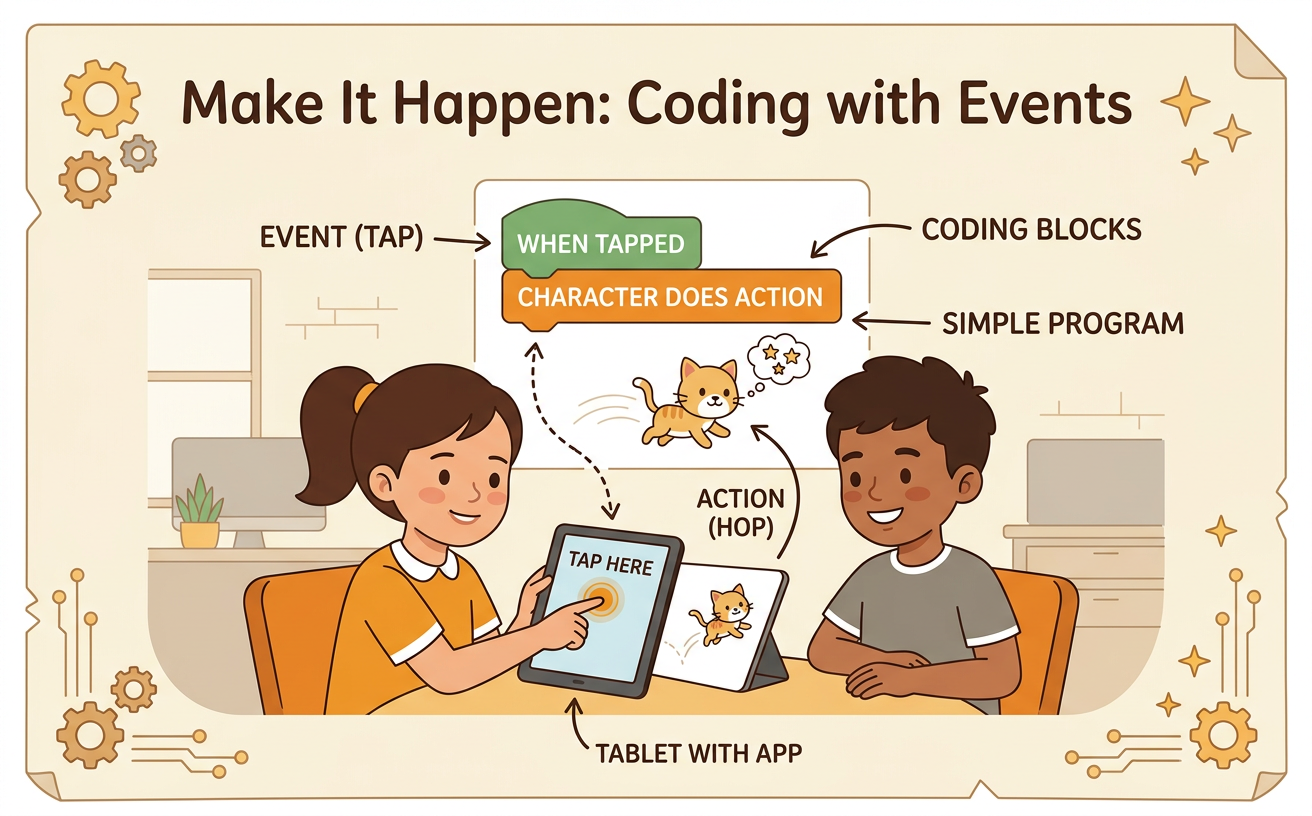
Illustrations are auto-generated and may be placeholders. They can be refreshed to match the narration.
Notice Events and Actions
An event is something that tells a program to begin an action. A tap, a mouse click, a key press, or a spoken command can be an event. An action is what the character does next. It might jump, spin, move, speak, or change color. Imagine a game with a cat on the screen. When you tap the green button, the cat jumps. The tap is the event, and jumping is the action. We can describe this rule by saying, “When the green button is tapped, make the cat jump.” Look for events and actions in devices you use. When you press a lamp switch, the light turns on. With a partner, take turns naming an event and its action. Listen carefully while your partner speaks.

Match Each Event to a Response
A program needs clear event-and-response rules. The response is the action that happens after an event. You can match each event to the action you want. For example, pressing the up arrow key can make a bird fly upward. Pressing the space bar can make the bird flap its wings. Tapping the bird can make it chirp. Each event may cause a different response. Before coding, draw lines to connect event pictures with action pictures. Then explain your matches to a partner. You might say, “I matched the up arrow to flying up because the arrow points in that direction.” Follow the discussion rule of waiting for your turn. Pay attention to your partner’s idea, and decide together whether each match will help the character act as planned.

Build an Event Program
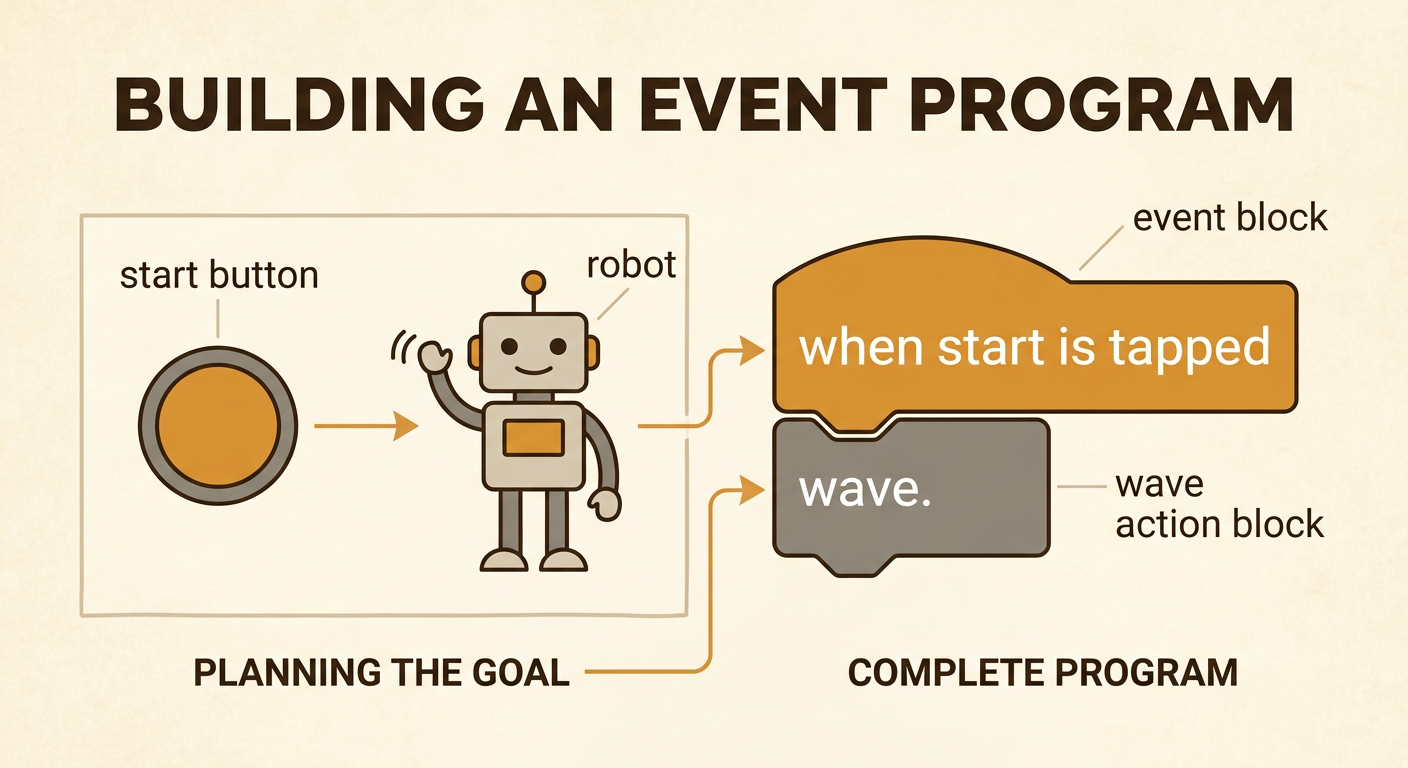
Now build a simple event program. First, choose a character and a goal. Suppose you want a robot to wave when the start button is tapped. Sketch your idea before you code. Draw the button, the robot, and an arrow showing what happens. Then join coding blocks that fit together in order. Use a “when start is tapped” event block. Attach a “wave” action block under it. The block shapes help the pieces connect in the correct order, like puzzle pieces. Your complete rule means, “When the start button is tapped, the robot waves.” Work with a partner. One person can choose the event, and the other can choose the action. Talk about the choices, listen to each other, and agree on the program before running it.
Test the Program
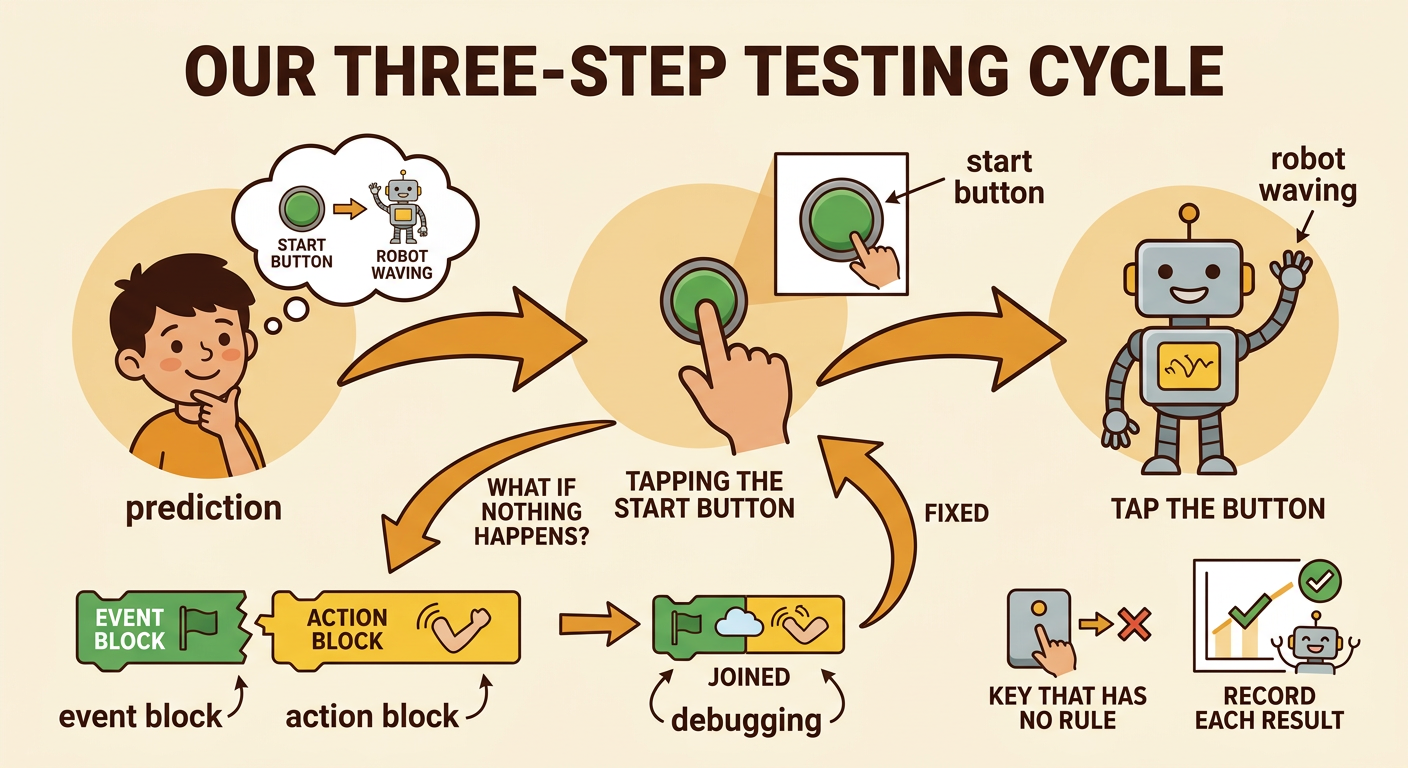
Testing helps you learn whether your program works as planned. First, predict what should happen. For the robot program, say, “I think the robot will wave when I tap start.” Next, run the program and cause the event by tapping the start button. Watch the robot closely. Did it wave? If it did, test again to make sure the response is reliable. If nothing happened, check the blocks. The action block may not be attached to the event block, or you may have tapped a different button. Fix one thing and test again. This process is called debugging. You can also try an event that is not in the program. If pressing a key has no rule, the robot should not wave. Record the result with a check mark or a simple drawing.
Share and Improve
Share your program so classmates can see how it works. Begin by naming the event and action. You might say, “When I tap the star, the frog hops.” Demonstrate the program, then invite a classmate to test it. Follow your class discussion rules: take turns, listen attentively, and respond kindly. A classmate might suggest making the frog hop twice or adding a sound. Decide as a group which idea best helps the program meet its goal. Then sketch the change and update the blocks. For example, you could place two “hop” blocks after the tap event or add a “play boing sound” block. Test the improved program again. Giving useful feedback is not the same as saying something is bad. Helpful feedback explains what worked and suggests one clear change.
