Navigating Informational Text with Text Features
Students identify and use headings, captions, diagrams, glossaries, and other text features to locate information efficiently in an informational text.

Illustrations are auto-generated and may be placeholders. They can be refreshed to match the narration.
Introduce Common Text Features
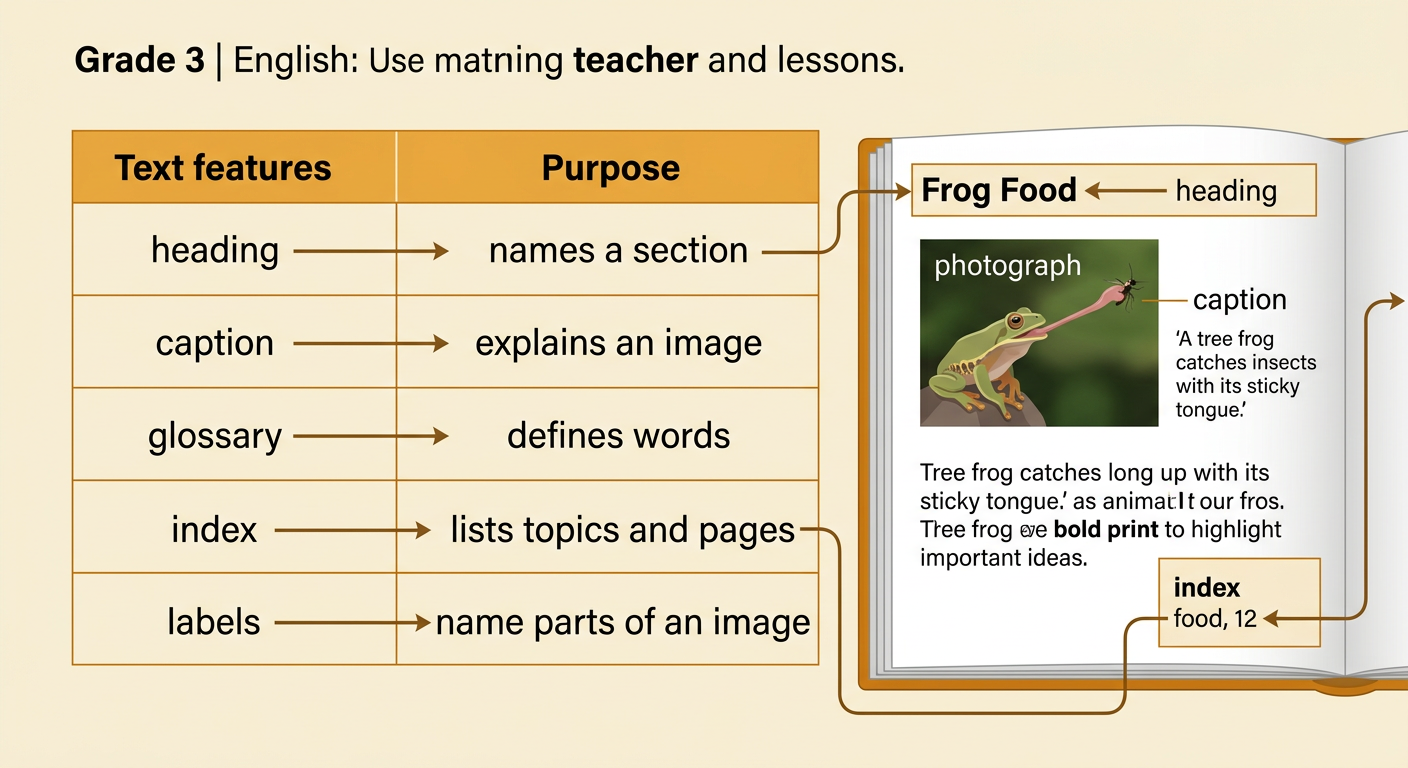
Informational texts use special parts called text features to organize facts and help readers find information. A title names the whole text. Headings tell what different sections are about. Bold words point out important terms. Photographs and diagrams show what something looks like or how it works. Captions explain images. A glossary near the end defines unfamiliar words, while an index lists topics and page numbers. Sidebars provide extra facts related to the main text. For example, in a book called Amazing Frogs, the heading “A Frog’s Life Cycle” helps you find the section about how frogs grow. A diagram may show the stages from egg to adult, and its caption may explain the changes.

Match Features to Their Purposes
Each text feature has a special purpose. A heading helps you predict the topic of a section. A caption explains a photograph, map, chart, or diagram. Labels name specific parts of an image. A glossary gives definitions, and an index directs you to pages about a topic. Key words, which may appear in bold print, highlight important ideas. A sidebar shares useful information that is separate from the main paragraphs. Imagine that you want to learn what a frog eats. The index might send you to page 12. On that page, the heading “Frog Food” confirms that you are in the right place. A caption under a photograph might explain that a tree frog catches insects with its sticky tongue.
Preview an Informational Text
Before reading every word, preview the text to learn how it is organized. First, read the title and look at the cover image. Next, scan the table of contents and headings. Notice photographs, diagrams, maps, captions, bold words, and sidebars. Then check whether the text has a glossary or an index. These clues help you predict what you will learn and where facts may be located. Suppose you preview a book titled Weather at Work. The table of contents lists “Clouds,” “Storms,” and “Measuring Weather.” A diagram shows parts of a rain gauge. From this quick preview, you can predict that the book explains types of weather and tools used by meteorologists. Now you can choose the section that best fits your purpose.

Locate Information Efficiently
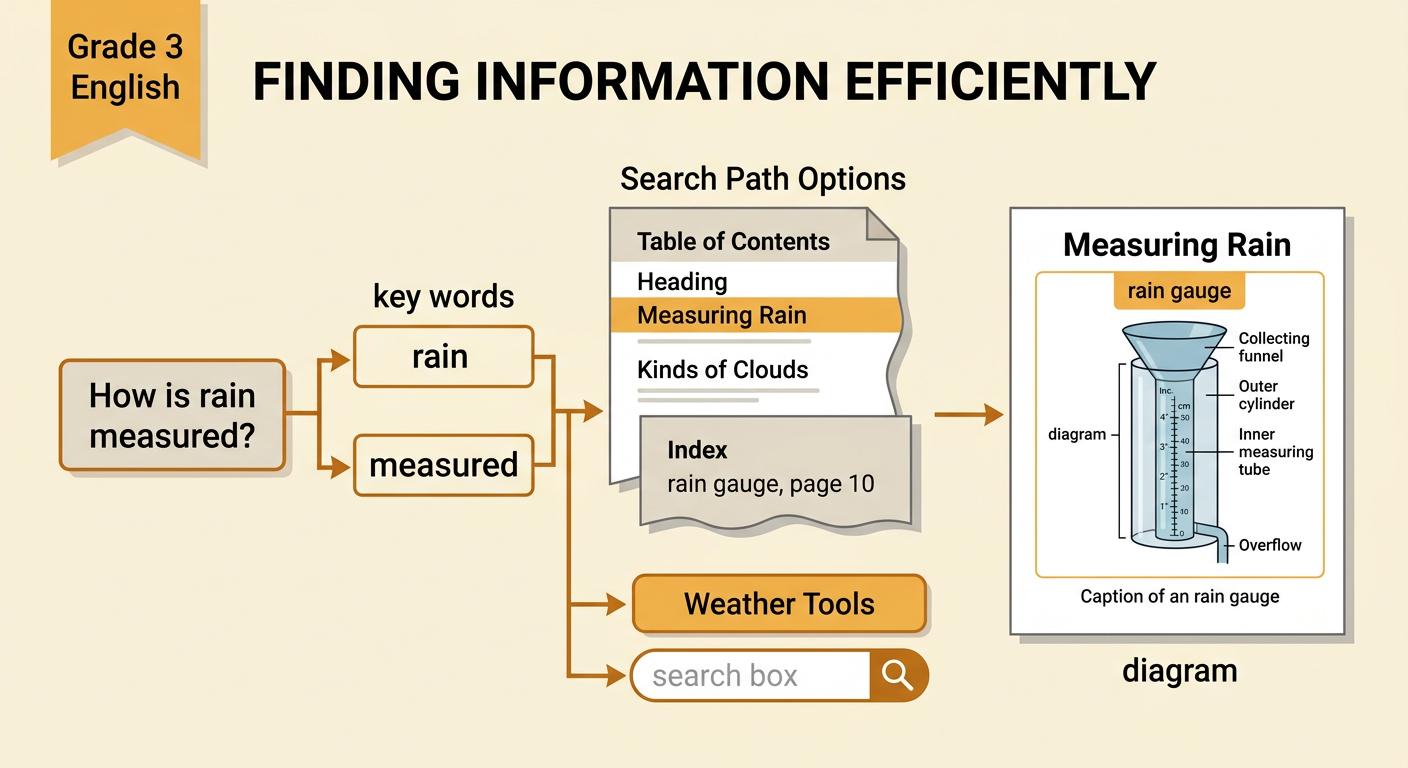
Efficient readers choose a text feature based on the information they need. Start by turning your question into key words. If the question is “How is rain measured?” useful key words are rain and measured. Scan the table of contents, headings, index entries, or digital search results for those words or related terms. A heading called “Measuring Rain” is more helpful than one called “Kinds of Clouds.” Read that section closely, and use its diagram, labels, and caption to gather details. In a digital text, you might select a hyperlink called “Weather Tools” or use a search box. Do not read every page when one feature can guide you directly to the answer. Always check that the information you find truly answers your question.
Complete a Text-Feature Challenge
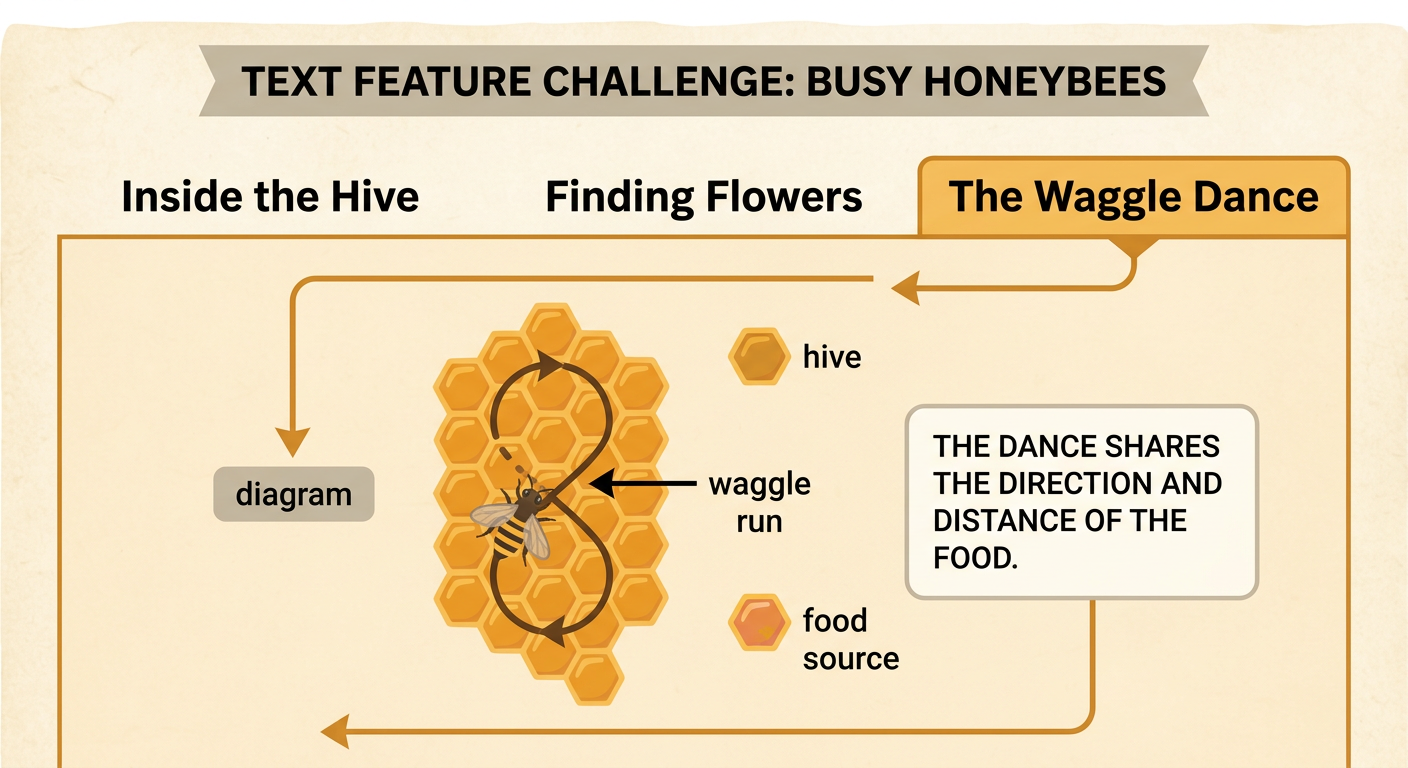
Try a text-feature challenge with an informational article called Busy Honeybees. Your question is “How do honeybees tell other bees where to find food?” First, preview the headings: “Inside the Hive,” “Finding Flowers,” and “The Waggle Dance.” Choose the heading most closely connected to communication. Then examine the diagram under “The Waggle Dance.” Its arrows show the direction of the bee’s movement, and the labels identify the hive and food source. Read the caption, which explains that the dance shares information about the direction and distance of food. Finally, state the answer in your own words: A honeybee uses a waggle dance to guide other bees toward food. Name the features that helped you: the heading, diagram, labels, and caption. This proves that you can find information efficiently.